
Projects
One Home for Every Asset, Brief, and Generation.
Without a project, files end up as orphaned uploads, prompts live in chat history, and teams lose context. MediaSnap Projects give you a dedicated workspace with folders, settings, and shared history so every image, video, and audio file stays tied to the work it belongs to.
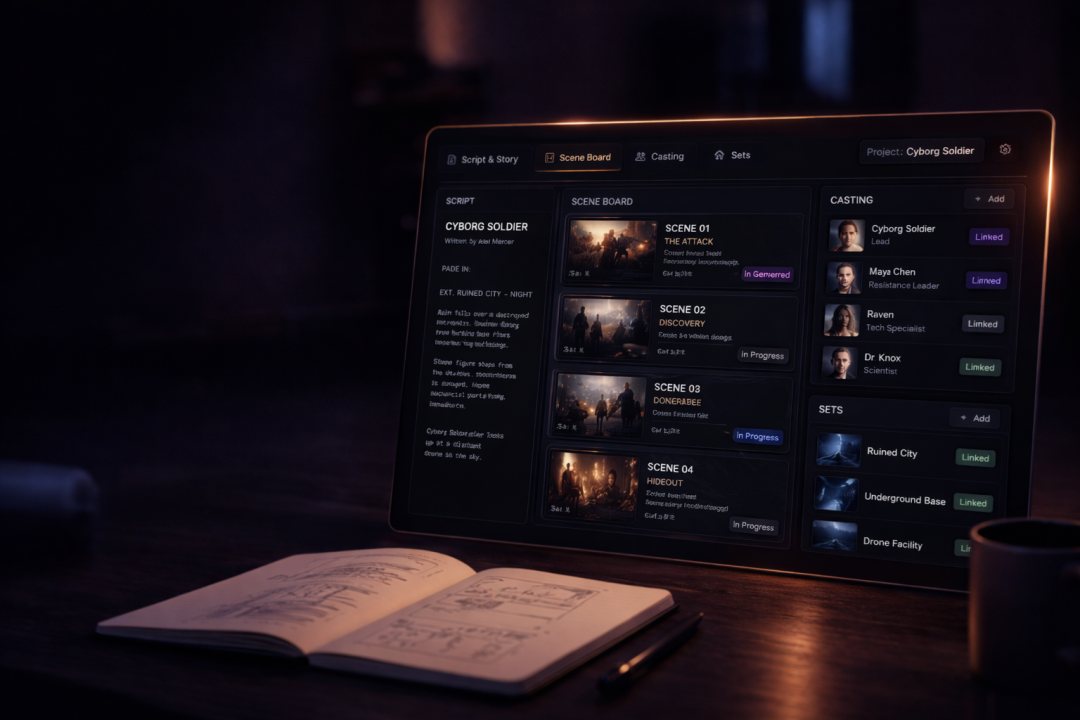

The problem
Chaos without a container
Downloads, tabs, and one-off folders do not scale.
- Hard to find the right version after a few days
- No shared defaults for models, style, or credits
- Collaboration means passing links, not a workspace
The fix
Productions
Organize first, create inside a workspace you control.
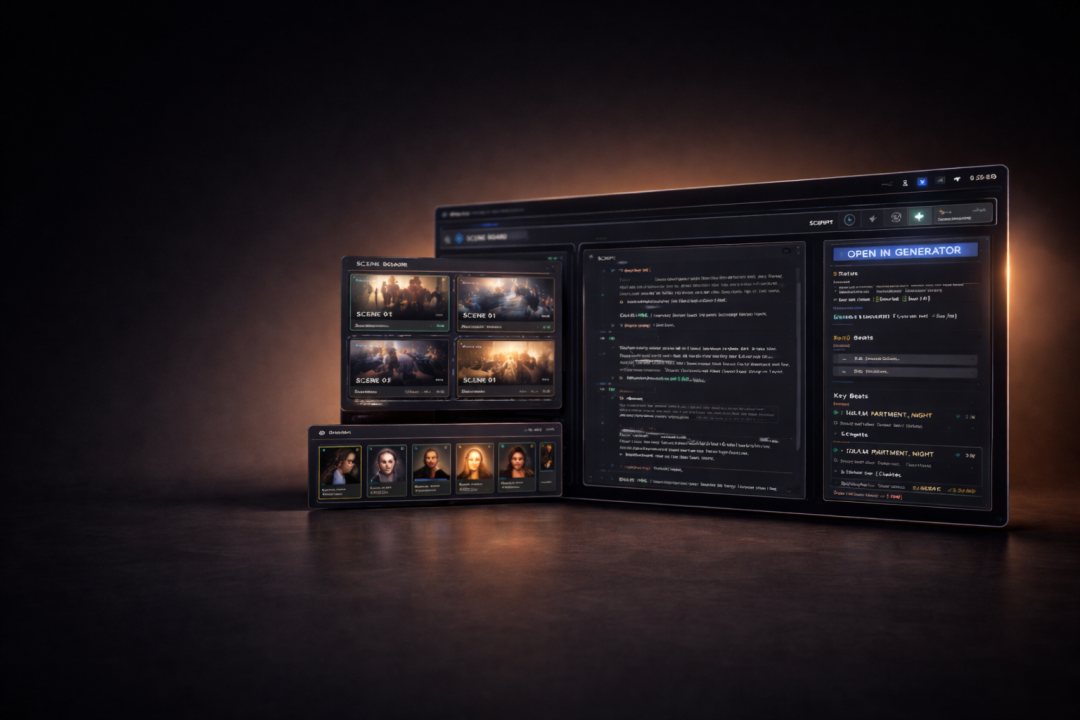
- Each production keeps uploads, creations, and folders in one tree
- Production settings carry model choices, defaults, and context into tools
- Switch productions without losing where your media lives
Core idea
A workspace, not a dump
Folders, permissions, and history that stay with the job.
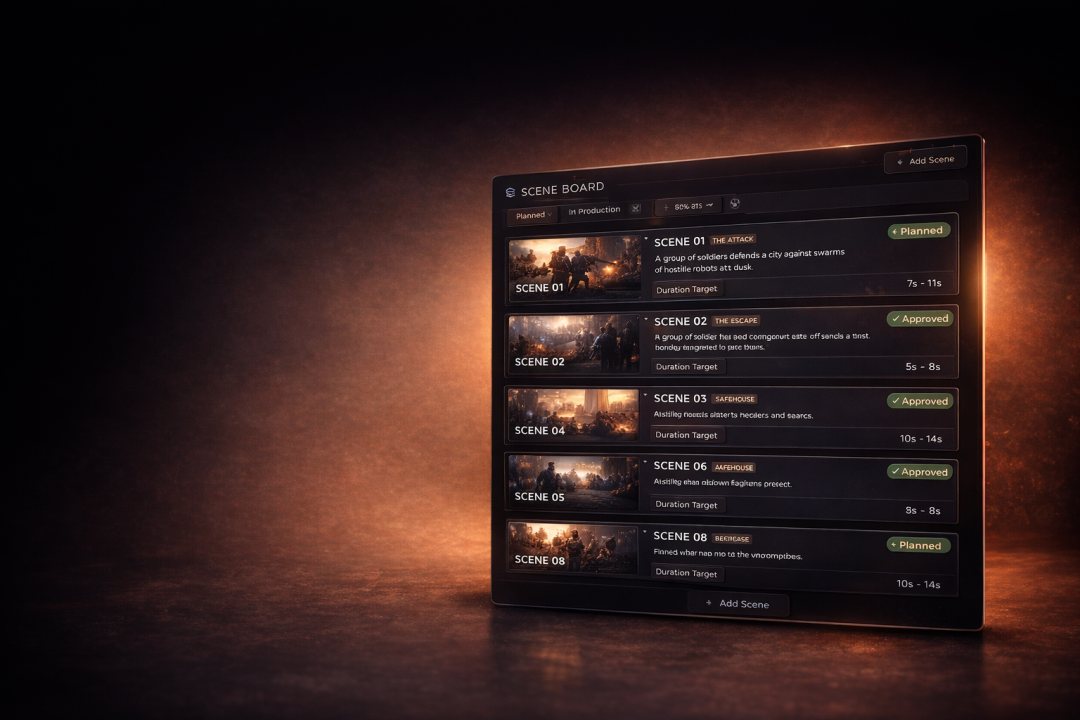
Create a production per client, campaign, or film. Everything you upload or create is stored under that roof—searchable, sortable, and ready for Director Studio or the Creation Engine without re-uploading.
Inside a production
What you get
The basics every serious workflow needs.
Folders & files
Uploads, references, and exports organized the way you work.
Production settings
Defaults and preferences that follow you into creation tools.
Media library
One gallery per production for images, video, and audio.
Studio entry
Open Director Studio or the Creation Engine with the active production already set.
Workflow
Where productions sit
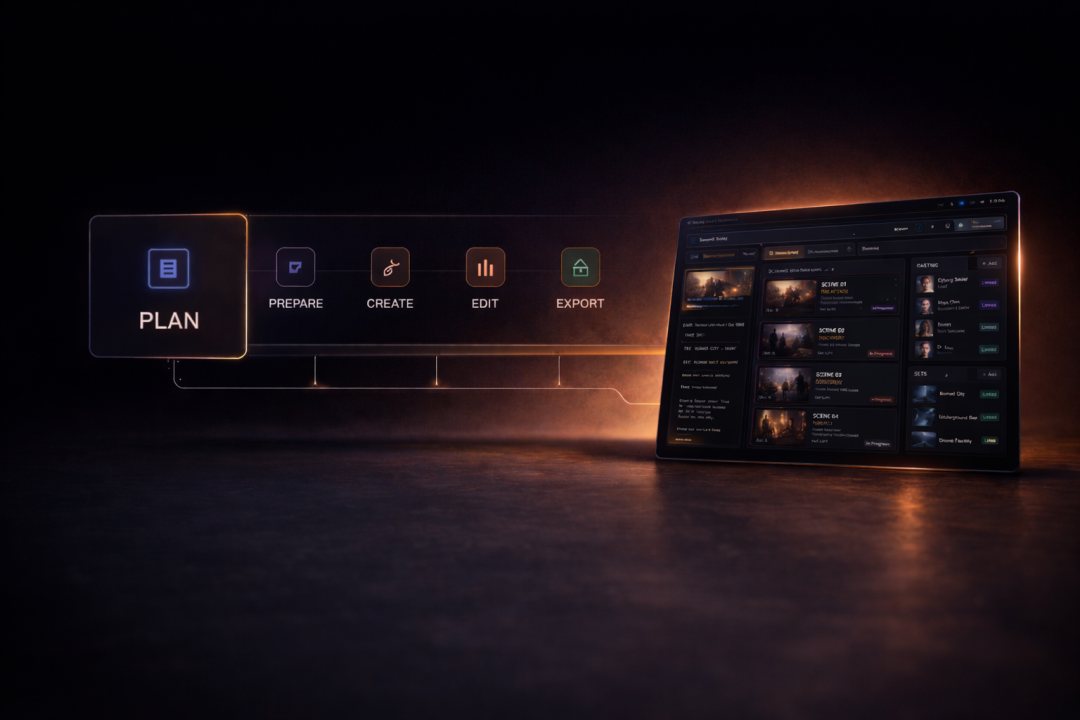
Productions are the Organize backbone of the studio.
You pick a production before you plan, create, or export. That choice drives storage paths, quotas, and what the AI tools remember.
Outcomes
Why it matters
Less hunting, fewer mistakes, faster handoffs.
Findability
Everything lives under a name you chose.
Consistency
Settings and assets travel with the production.
Scale
Add folders and collaborators without starting over.
Confidence
Ship knowing which production a file came from.

Next step
Create or open a production
Start in Studio, then plan in Director Studio or jump straight to creation.